


Tv Remote Control for Fire
3.56.00 Reviews
App Specs
- Version
- 1.1.2
- Updated On
- License
- Free
- Downloads
- 10,000+
- Developer
- Apps Style
- Categories
- House & Home
- Platform
- Android
Screenshots
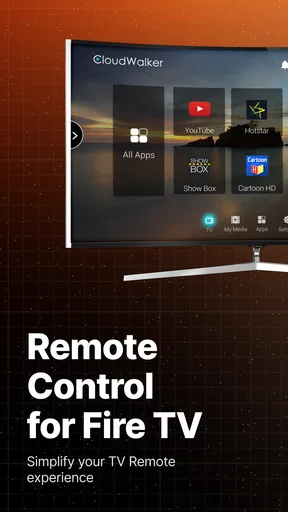
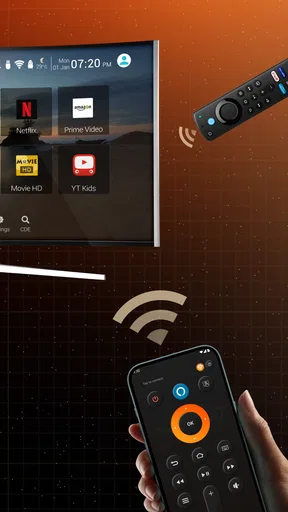
 Analysis by AppCompare
For anyone who uses a Fire TV or Fire Stick, a phone can be a handy backup when the physical remote is out of reach. TV Remote Control for Fire is built around that simple job: it turns a smartphone into a way to control Fire TV devices. I like the idea most as a practical fallback, rather than as a reason to stop keeping a physical remote nearby. The app is free to install, though it also offers in-app purchases, so I’d treat the basic remote function as the main reason to try it and check any purchase prompts before spending.
A phone as the control you already have
The useful distinction here is between replacing a missing remote for a moment and changing how you use the television every day. If my remote has slipped under a cushion, my phone is usually close by; opening a remote app can be quicker than searching the room. That is the core appeal of this House & Home app from Apps Style. It is aimed at people who want to manage Fire TV or Fire Stick from a smartphone, not at viewers looking for a new streaming service or a broader home-automation setup.
That focus is welcome. A phone-based remote can make ordinary navigation easier when the handset is already in your hand, especially during a quick pause, a menu change, or a search. It also gives a household another way to reach the TV when the regular remote is being used elsewhere. The trade-off is familiar: a phone needs to be nearby, usable, and connected in the way the app expects. A physical remote remains simpler when you want a dedicated controller that is always ready in the same place.
What to expect when getting connected
The first practical question is whether the app can find the Fire TV you intend to control. I would start with the television or Stick powered on and the phone connected to the home network, then follow the app’s prompts rather than tapping around at random. If a device does not appear, checking that both devices are on the same Wi-Fi network is a sensible first troubleshooting step. It is also worth confirming that you selected the right Fire device if more than one is available in the home.
For a household with several screens, take a moment to identify each target clearly before settling in. It is easy to send a navigation command to the bedroom screen while sitting in front of the living-room TV if you switch devices carelessly. This is a small workflow detail, but it can save a frustrating round of wondering why the screen did not respond. A phone remote is most convenient when you establish the right connection once and then use it deliberately, rather than treating device selection as an afterthought.
Where phone control earns its place
Picture a relaxed evening: you sit down, start a show, and then realize the remote is somewhere between the sofa cushions or in another room. Instead of pausing to search, you pick up your phone and use it to navigate. That is a realistic situation where a companion remote can feel worthwhile without needing to become your main way of controlling the TV. It is also useful when someone else has the physical remote nearby and you only need to make a quick adjustment.
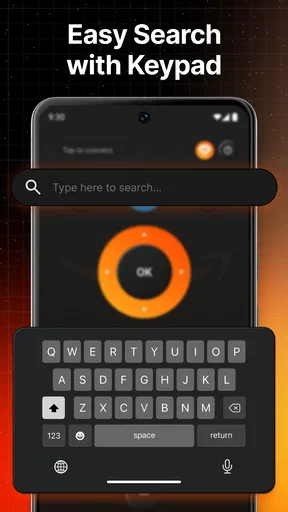
Typing is another area where a smartphone can be more comfortable than repeatedly moving through an on-screen keyboard with directional buttons. When entering a search phrase or account details, phone keyboard input can reduce the number of slow, individual selections. I would still be careful with passwords and other sensitive text, particularly if the phone is shared or visible to other people in the room. The convenience is real, but it does not remove the usual need to protect account information.
Worth Reading Before You Choose

Flipboard Shows What News Apps Must Do Beyond the Feed

Switching to Android Auto Means Rethinking Your Driving Routine

Google Calendar Makes a Crowded Week Easier to Manage

Ludo King Makes the Most of the Minutes Between Plans

Baby Panda World Brings Quick Play to Modern Phones, but Its Game Library Feels Busy

ESPN’s Live Game View Makes Following Close Games Easier
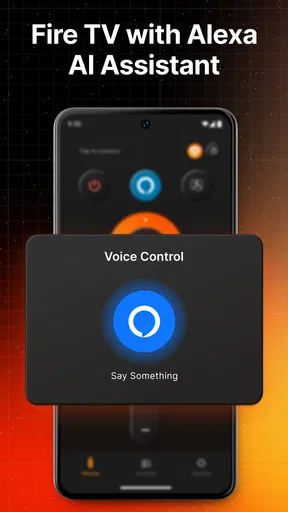
Voice input can be handy when you know what you want to find but do not want to type it. It is not automatically the best choice in every situation: a noisy room, an unclear title, or a search that needs precise spelling can make typing the more dependable option. I see voice and keyboard entry as alternatives for different moments, not as features that make physical navigation obsolete. Switching methods according to the task is likely to be more comfortable than insisting on one approach.
How it compares with the usual options
Compared with the standard physical remote, the phone version wins on availability when your handset is already nearby and on text entry when a long search would be tedious. The physical remote wins on immediacy: it has dedicated buttons, does not depend on you opening an app, and is easier to hand to a guest who just wants to change the channel or pause playback. If you rarely lose the remote and mostly use basic navigation, the phone app may be a backup rather than a meaningful upgrade.
Compared with searching for a general-purpose remote-control app, a Fire-focused option is appealing when your main target is a Fire TV or Fire Stick. The advantage of a dedicated purpose is that the controls can be centered on that device family instead of asking you to configure a wide range of unrelated equipment. The limitation is the same focus: if you want one phone app for a television, sound system, and devices from several different ecosystems, a broader solution—or the original controllers—may fit better.
Small habits that make it more useful
I would keep the phone charged before relying on it for a long viewing session. Unlike a physical remote, it competes with messages, calls, and every other job the phone handles, so a low battery can turn a convenient backup into an inconvenience. It also helps to avoid closing the app in the middle of a task if you expect to make several quick changes. For occasional use, the extra step of reopening it is minor; for frequent use, keeping the workflow simple matters.
Before using it in a shared home, agree on which Fire device is selected and who is controlling it. Two people issuing commands from different remotes can make a menu jump unexpectedly, even when both are acting normally. If the app seems unresponsive, I would first check the selected device and network connection, then reopen the app and try again. That sequence is more useful than assuming the TV itself has failed.
The app is rated for Everyone, and its low average rating count is a reason to approach broad claims cautiously rather than assume every setup will behave identically. Its current version is 1.1.2, and it has reached over ten thousand installs. Those details suggest an established audience, but they do not guarantee a perfect fit for every phone or home network. I would test the basic connection before deciding whether any optional purchase is worthwhile.
Who should try it—and who can skip it
I think it makes the most sense for Fire TV owners who often misplace the remote, share a television, or prefer using a phone keyboard for searches and text entry. It can also suit someone who wants a spare control method in another room without buying an additional physical remote. With an average rating of 4.1 from eleven ratings, feedback is encouraging but based on a small pool, so I would weigh the practical fit for your home more heavily than the score.
I would skip it if you expect a phone app to be a complete substitute for every physical control, or if you need a single remote solution for a mix of unrelated devices. It may also be unnecessary if your Fire remote is always close and you rarely type searches. The free starting point lowers the barrier to trying it, while in-app purchases range from $3.99 to $19.99 per item. I would use the core controls first and only consider paying if an option clearly solves a problem you actually have.
Getting Started: Easy Peasy Setup
First things first, downloading and setting up the TV Remote Control for Fire was a breeze. A quick search on the Play Store or App Store and boom, it’s ready to go. Once installed, connecting it to my Fire TV was straightforward. The app guided me through the setup process with prompts that even a tech newbie could follow. All you need is your phone and a Wi-Fi connection, and you’re good to go.
User Interface: Simple and Intuitive
The app’s user interface is clean and intuitive. It mirrors the physical remote, making it familiar and easy to navigate. I appreciated the minimalistic design—no unnecessary bells and whistles, just straightforward functionality. The buttons are well-labeled and responsive, so there’s no lag when you’re flipping through channels or adjusting the volume.
Features: More Than Just a Remote
One of the standout features of this app is the voice control capability. By tapping the microphone icon, I could search for shows, adjust settings, or open apps using just my voice. This feature is particularly handy when you don’t feel like typing out lengthy movie titles. The app also allows for keyboard input, making it easier to log into apps like Netflix or Hulu without the tedious process of selecting each letter with arrow keys.
Another neat feature is the ability to control multiple Fire devices from one app. If you’re in a household with multiple Fire TVs or Fire Sticks, you can easily switch between them without any hassle. This is perfect for those who have a setup in multiple rooms.
Performance: Smooth Sailing
In terms of performance, the app runs smoothly. I didn’t encounter any crashes or bugs during my use. The connection was stable, and I appreciated the quick response time when I issued commands. It’s clear the developers put a lot of effort into ensuring the app functions seamlessly.
Compatibility: Works Across Devices
The app is compatible with a broad range of Fire TV devices. Whether you’ve got the latest Fire TV Cube or an older Fire Stick, this app has got you covered. It’s this kind of versatility that makes it a must-have for any Fire TV user.
Final Thoughts: A Must-Have App
Overall, this remote-control app is a convenient addition to a Fire TV setup. I’d recommend trying it as a backup or for the moments when phone typing and voice search are easier than using a physical controller. It is not essential for everyone, and a standard remote remains the better choice for viewers who want a dedicated, always-ready device. For a free app from Apps Style, rated for Everyone and available on devices running Android 7.0 or later, it is a reasonable option to consider. Its release date is September 28, 2025, so I would also keep in mind that the app is relatively new when judging how much long-term feedback is available.
So, next time you’re stuck without a remote, or just want to try a new way to manage your Fire TV, give this app a try. It’s a solid tool that’s sure to make your TV time just that little bit better.
Pros
- Easy setup with clear instructions.
- Compatible with multiple Fire TV models.
- User-friendly interface for all ages.
- No additional hardware required.
- Quick response time with minimal lag.
Cons
- Ads can be intrusive at times.
- Limited features in free version.
- Requires stable Wi-Fi connection.
- Might not support older devices.
- Some features need in-app purchases.
FAQs for Tv Remote Control for Fire
What devices are compatible with the TV Remote Control for Fire app?
The TV Remote Control for Fire app is designed to work with Amazon Fire TV devices, including Fire TV Stick, Fire TV Cube, and Fire TV Edition Smart TVs. Ensure your device is connected to the same Wi-Fi network as your smartphone for seamless control. Compatibility may vary with some older models.
How do I set up the TV Remote Control for Fire app?
To set up the TV Remote Control for Fire app, download it from the Google Play Store or Apple App Store. Ensure your smartphone and Fire TV device are on the same Wi-Fi network. Open the app, select the device you wish to control, and follow the on-screen instructions to complete the setup.
Are there any subscription fees for using the TV Remote Control for Fire app?
The TV Remote Control for Fire app is free to download and use. Some features, such as ad-free experience or advanced functionalities, may require in-app purchases or subscriptions. Check the app store listing for detailed information on any potential costs associated with premium features.
What features does the TV Remote Control for Fire app offer?
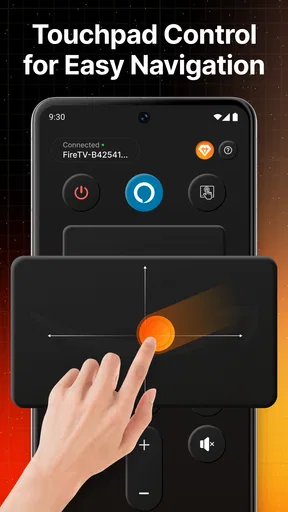
The TV Remote Control for Fire app offers a variety of features, including voice search, keyboard input, and quick access to popular streaming services. It also provides volume control, navigation buttons, and a touchpad for easy browsing. The app aims to enhance your user experience with intuitive controls and additional functionalities.
How can I troubleshoot connection issues with the TV Remote Control for Fire app?
If you encounter connection issues, ensure both your smartphone and Fire TV device are on the same Wi-Fi network. Restart both devices and try reconnecting. You can also check for app updates or consult the app’s help section for further troubleshooting steps. Persistent issues may require contacting customer support.


